Introduction
WooCommerce Product Finder is a powerful search enhancement tool that lets customers find products on your store using everyday, conversational language. Shoppers can type or say phrases like “black hoodie for man with small size” and the plugin intelligently interprets their intent to deliver fast, accurate results.
Beyond intuitive search, the plugin includes a suite of features designed to increase engagement and sales: ‘Ask AI’ buttons on product pages provide instant information from popular AI like Chatgpt, Perplexity and Claude, Plugin also provides a dashboard to tracks popular searches for valuable customer insights, Also you can easily create ‘Frequently Bought Together’ promotions to boost average order value.
Transform your store’s search from a basic box into a dynamic, results-driven shopping assistant.
Features:
🎤 Smart Voice & Natural Language Search
- AI-Powered Voice Search: This advanced feature allows customers to search your store by speaking, like asking for a “small size black leather jacket for men.” It uses AI to understand the request and requires you to add your OpenAI API key in the plugin settings to activate.
- Traditional voice Search Mode: If you prefer not to use the AI voice feature, the plugin also includes a fully functional traditional voice-based search. You can enable this mode without needing an external API key.
- Customizable Mic Icon: Choose from several floating microphone icon styles in the settings to match the look and feel of your store.
- Intelligent Query Understanding: The search system is designed to interpret the customer’s intent, looking beyond simple keywords to match phrases with your products’ titles, descriptions, and attributes.
🤖 AI Assistant Buttons on Product Pages
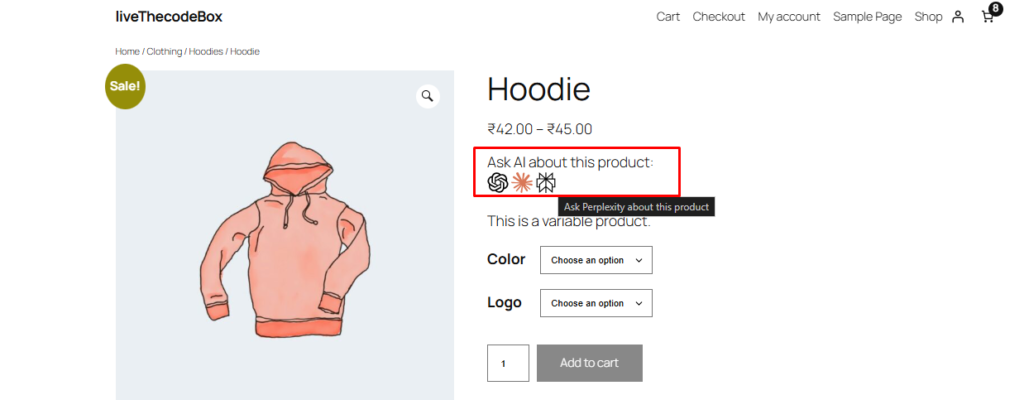
- AI Confidence & Support Buttons: This feature adds recognizable AI assistant icons (for ChatGPT, Claude, and Perplexity) to your product pages. It helps customers feel more confident by letting them instantly get more details or ask questions about a product to their preferable ai.
- How It Works for Buyers: When a customer clicks an icon, they are taken directly to that AI’s website with a pre-written question already filled in. You, as the admin, control this question to ensure the AI provides helpful, reassuring information that supports the purchase decision.
- Customizable Prompts: From the plugin’s admin panel, you can fully customize the prompt/question that gets sent to each AI. This allows you to tailor the information to highlight specific product benefits or answer common customer concerns.
📈 Popular Search Dashboard
- Track Customer Searches: The plugin logs every search term that visitors use on your store, whether by voice or text. All this data is displayed in a clear dashboard within your WordPress admin.
- Analyze Search Trends: As the admin, you can use this dashboard to see what your customers are looking for. You can identify popular products, spot new trends, and notice any items that are frequently searched for but not found.
- Follow-Up Email Tool: From the dashboard, you have the option to send personalized, one-time follow-up emails to users (if they are logged in) who searched for a specific product but may not have purchased it yet.
🛍️ “Frequently Bought Together” Suggestions
- Boost Sales with Bundles: Easily create and display “Frequently Bought Together” or “Complete the Look” product bundles directly on your product pages to encourage customers to add more items to their cart.
- Manual or Smart Pairing: You can manually select which products to pair together, or use the plugin’s suggestions based on store data to create effective combinations.
- Seamless Store Integration: The suggestions appear as a native part of your product page, providing a smooth shopping experience that can help increase your store’s average order value.
🎞️ Video Gallery
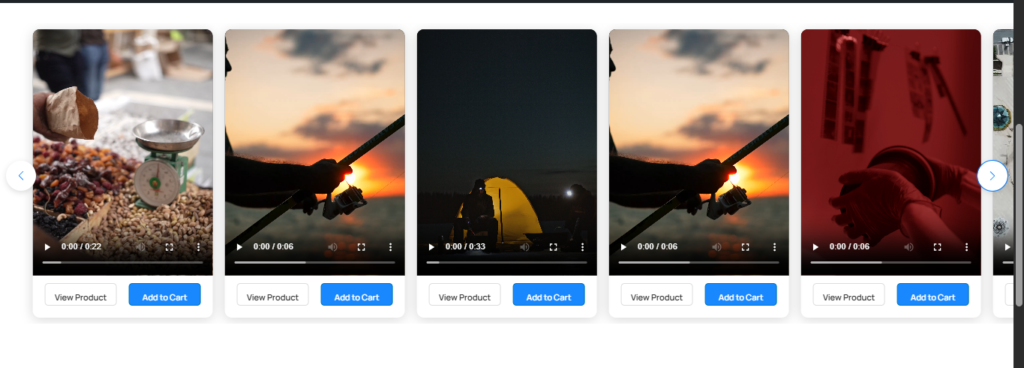
Display your product videos in a beautiful, swipeable gallery to give customers a quick and engaging way to explore your products.
You can easily add and manage videos from the “WPF Videos” menu in the WordPress admin sidebar. Once added, videos can be displayed on product pages or anywhere on your site using a shortcode.
The swipe-friendly layout works smoothly on both desktop and mobile devices, making it ideal for showcasing product demos, usage highlights, or promotional clips in a modern, reels-style format.
⛱️ Holiday Mode
Need to temporarily close your store without taking your website offline? Holiday Mode lets you schedule a break in advance by setting a start and end date.
During this period, checkout and add-to-cart functionality can be automatically disabled, preventing new orders while you’re away. Once the scheduled time ends, everything returns to normal automatically — no manual steps required.
You can also display a custom holiday message to clearly inform customers about the temporary closure, and place it anywhere on your site using a shortcode for better visibility.
Now that you’ve seen the core features, the next sections break down each one individually. You’ll find detailed explanations, available settings, and guidance on how to configure them properly.
General Settings
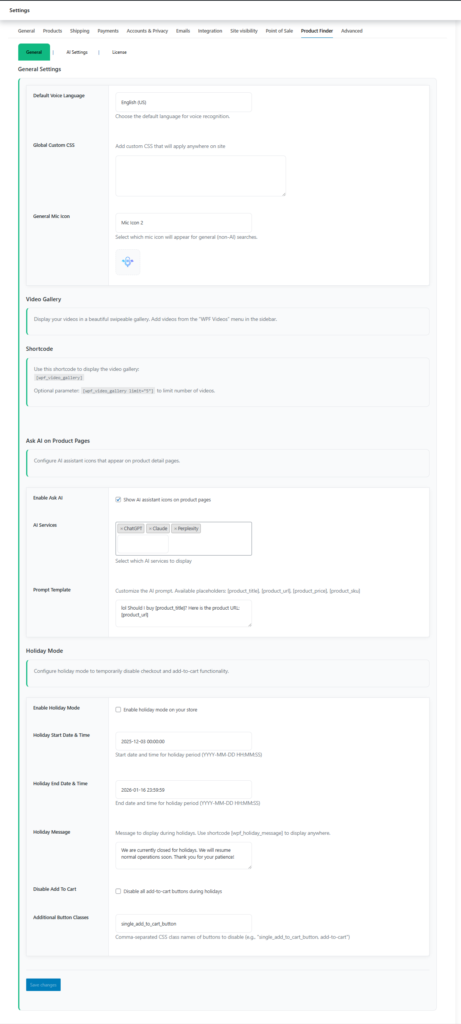
Voice Search Settings:
Configure the fundamental behavior and appearance of the plugin.
- Default Voice Language:
This sets the default language for voice recognition on your storefront, which helps the AI understand spoken queries more accurately. Your customers can select a different language from their own account settings if needed. - Additional CSS:
Use this field to apply custom styling to any part of the plugin. To target a specific element, inspect it using your browser’s developer tools to find its unique ID or CSS class, then enter your custom CSS rules here. - General Mic Icon:
When using the traditional (non-AI) voice search, you can choose the visual style of the floating microphone button from a selection of icons to best match your store’s design.
Video Gallery
The Video Gallery feature allows you to display product-related videos in a swipeable gallery format on your website. This is useful for showcasing product demos, highlights, tutorials, or promotional clips in a clean and interactive layout.
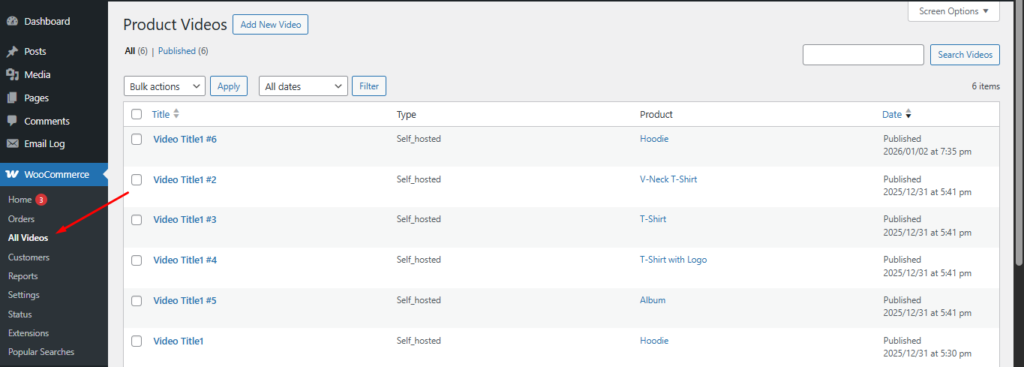
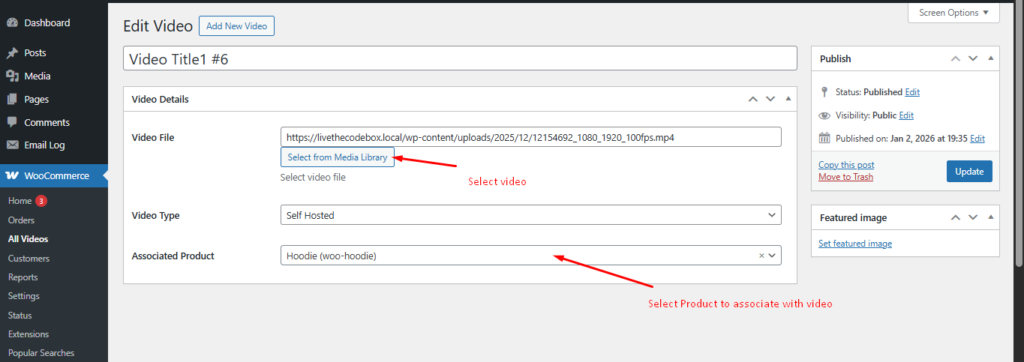
All videos can be managed from the “All Videos” menu in the WordPress admin sidebar. From there, you can add, edit, or remove videos as needed.
To display the video gallery on your site, use the following shortcode:
[wpf_video_gallery]You can place this shortcode on any page, post, or supported area where shortcodes are allowed.
Limiting the Number of Videos : If you want to display only a specific number of videos, you can use the optional limit parameter:
[wpf_video_gallery limit="5"]This will display only the specified number of videos in the gallery. The gallery layout is responsive and supports swipe gestures on mobile devices.
Front End View :
🤖 Ask AI on Product Pages
Control the AI assistant buttons that appear on your individual product pages.
- Enable Ask AI:
Use this toggle switch to turn the entire “Ask AI” feature on or off for your product pages. - AI Services:
Select which AI services you want to offer to your customers. You can enable one, multiple, or all available services (ChatGPT, Claude, and Perplexity). Icons for the selected services will appear on your product pages.
PDP Page View :
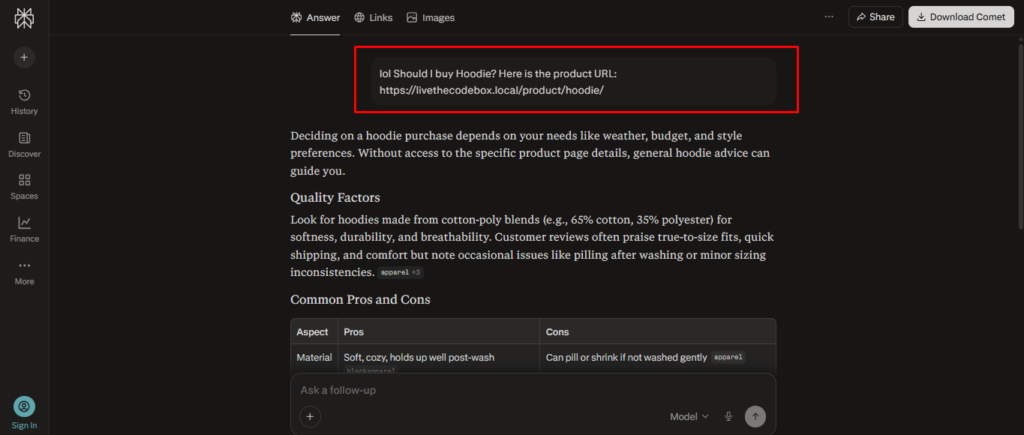
- Prompt Template:
Define the exact question or prompt that will be automatically pasted into the chosen AI service when a customer clicks an icon. Use the available placeholders to dynamically insert product information:- [product_title] – Inserts the product’s name.
- [product_url] – Inserts the direct link to the product page.
- [product_price] – Inserts the product’s price.
- [product_sku] – Inserts the product’s SKU code.
Holiday Mode
The Holiday Mode feature allows you to temporarily disable purchasing on your store for a defined period. This is useful during vacations, maintenance windows, inventory updates, or seasonal breaks.
When enabled, the plugin can automatically disable checkout and, if configured, hide or disable add-to-cart buttons across your store. Once the holiday period ends, normal functionality is restored automatically.
Enable Holiday Mode : Enable this option to activate Holiday Mode on your store. When turned on, the plugin will follow the configured start and end schedule.
Holiday Start Date & Time
Set the start date and time for the holiday period.
Format: YYYY-MM-DD HH:MM:SS
Example:
2025-12-03 00:00:00
At this exact time, Holiday Mode will become active.
Holiday End Date & Time
Set the date and time when the holiday period should end.
Format: YYYY-MM-DD HH:MM:SS
Example:
2026-01-16 23:59:59
After this time, checkout and purchasing functionality will automatically resume.
Holiday Message
You can define a custom message to inform customers that your store is temporarily closed.
This message can be displayed anywhere on your site using the shortcode:
[wpf_holiday_message]
Example message:
We are currently closed for holidays. We will resume normal operations soon. Thank you for your patience!
Disable Add To Cart
When enabled, this option disables all add-to-cart buttons during the holiday period, preventing new orders from being placed.
Additional Button Classes
If your theme uses custom button classes, you can enter them here as a comma-separated list to ensure they are also disabled.
Example:
single_add_to_cart_button, add-to-cart
This helps ensure that all purchasing-related buttons are properly restricted during Holiday Mode.
⚙️ AI Settings
This section is dedicated to setting up the advanced, AI-powered features of the plugin. Navigate to WordPress Admin → Woocommerce Settings → Product Finder → AI Settings
AI Configuration
Configure the essential connection and behavior for the AI functionality.
- OpenAI API Key
Required for AI Voice Search. Enter your unique API key from OpenAI here. This key enables the plugin to process natural language and voice commands. Without a valid key, only the traditional search mode will be available. Note that this is not mandatory to use voice search feature , this just enhances your site’s voice search feature with natural language search.
💡 How to get your key: Visit the OpenAI API platform, sign in, and create a new secret key. Copy and paste it into this field. - Filterable Attributes
Define the scope of the AI search. Select the product attributes (like Color and Size) from this list that you want the AI to recognize and use when interpreting customer queries. Only selected attributes will be used to filter search results. - AI Mic Icon
Customize the visual cue for AI mode. Select the specific microphone icon style (e.g., Mic Icon 5) that will be displayed on your storefront when the AI-powered voice search is active.
📊 Popular Searches Dashboard
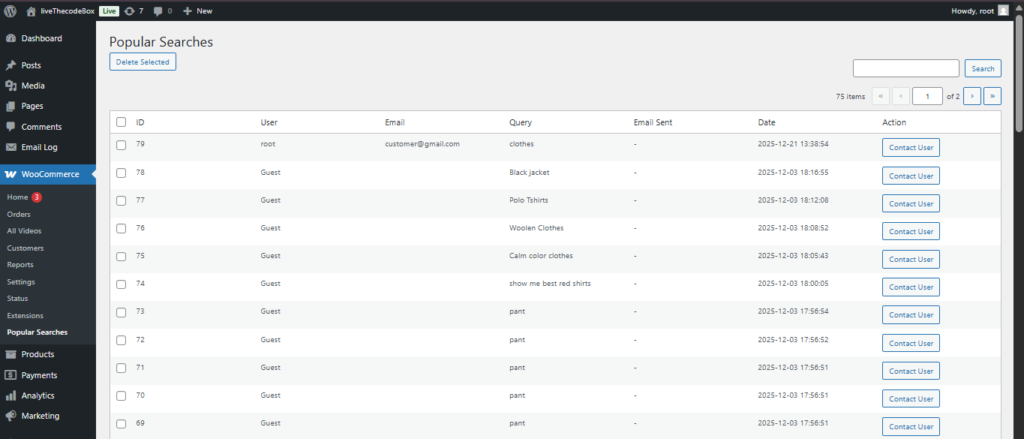
The Popular Searches dashboard provides valuable insight into what your customers are looking for. It automatically logs every search made using the Product Finder, whether by voice or through the text search interface.
This data helps you identify customer needs, spot trends, and take direct action to convert interest into sales.
Understanding the Dashboard Table
When you navigate to Woocommerce tab → Popular Searches, you will see a table with the following columns:
- User: Displays the username of the customer who performed the search (if they were logged in).
- Email: Shows the email address associated with the user’s account.
- Query: The exact search term or phrase the customer entered or spoke.
- Email Sent: Indicates whether a follow-up email has already been sent for this specific search (Yes/No).
- Date: The date and time the search was recorded.
- Action: Contains a button to send a personalized follow-up email to that user.
How to Send a Follow-Up Email
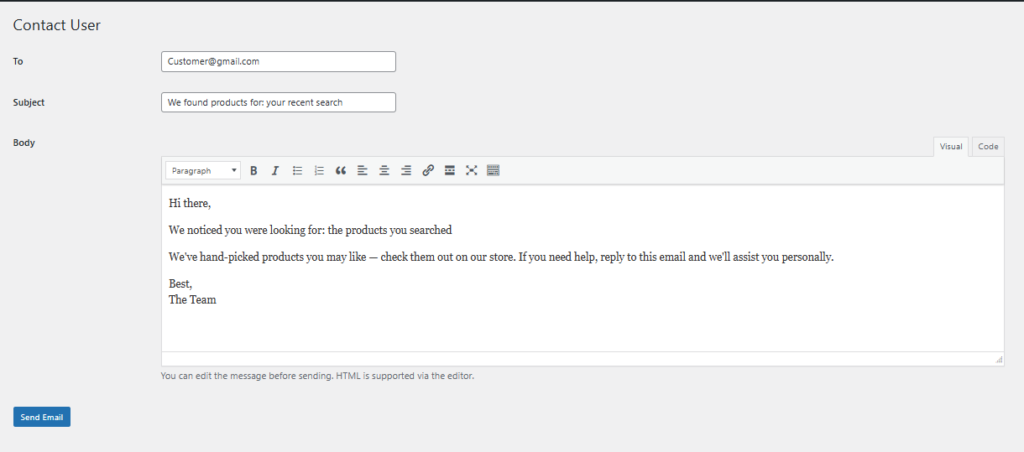
You can directly reach out to users who searched for items but may not have purchased.
- In the Action column, click the “Send Email” (or similar) button for the search query you wish to follow up on.
- A message composition window will open with several fields:
- To: The user’s email address is automatically populated.
- Subject: A subject line is pre-filled for you (e.g., “We found products for: [query]”). You can edit this.
- Body: A message area with a visual editor (like Visual/Code editor) where you can write your email. You can edit this message fully before sending. The editor supports HTML formatting and standard paragraph styling.
- Personalize the email to make it relevant to the customer’s search. For example, you can include links to specific products they were looking for.
- Click “Send Email” to dispatch your message. The “Email Sent” status for that row will update accordingly.
💡 Pro Tip: Use this feature to recover potentially lost sales by offering help, providing direct links to products, or even sharing a special discount related to the customer’s search interest.
🛍️ Buy Along / Styling Ideas
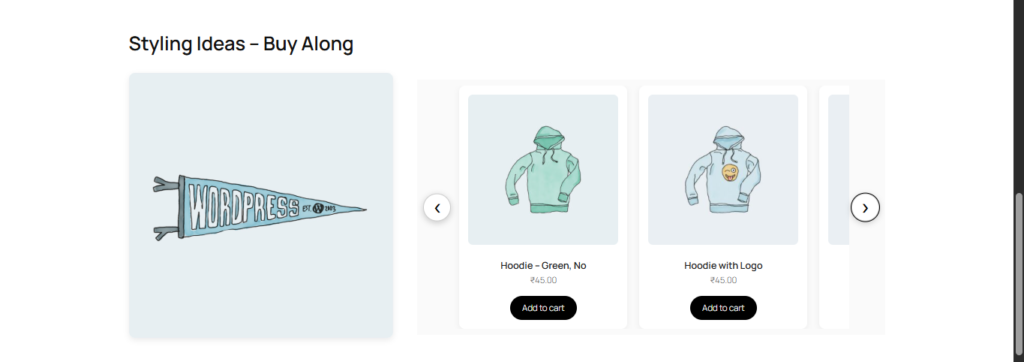
Boost your store’s average order value and enhance the customer experience by showcasing products that complement or are frequently purchased together with the main item. This feature adds a dedicated, visually engaging section to your Product Details Pages (PDP).
How It Works
On the front end, the plugin creates a new section on your PDP with a split layout:
- Left Side: Displays the image of the main product.
- Right Side: Shows a horizontal slider containing the selected companion products. Customers can browse these and add them directly to their cart with a single click.
Backend Configuration
Configure this feature by editing any product from your WordPress admin and locating the “Buy Along / Styling Ideas” meta box.
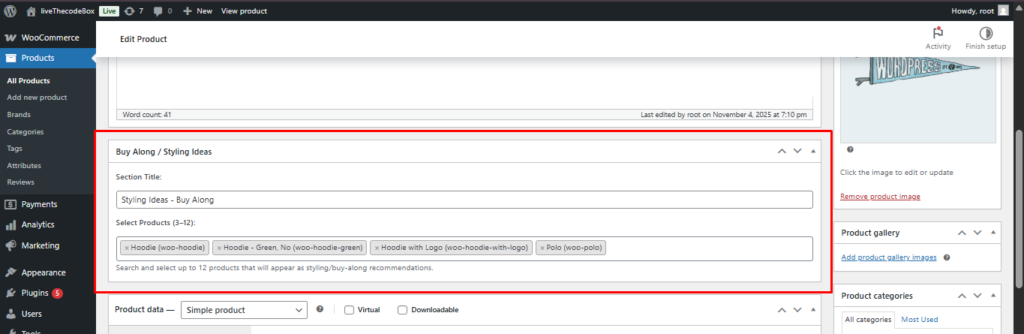
- Section Title:
Enter the heading you want to display above the product slider. Common titles include:- Frequently Bought Together
- Complete Your Look
- Style It With
- You May Also Need
- Select Products (3–12):
Use this searchable field to choose the companion products.
Front End View :